How does an image "compress"?

While I was still working on this website, I encountered a new challenge. One that probably many different software engineers had face before me. Its so common infact that the solution instantly came to me. Sadly, simply solving a problem doesn't make for an interesting article, the journey behind it does. Welcome to my deep dive into how an image is compressed.
Background
So, I was working on handling images inside the articles, the cover photos and the profile pictures. Having only 1GB cloud storage to work with, I was trying to optimize it so that one day I don't wake up to a bill worth my life savings in cloud bills. So, i looked into the best storage format for the web: webp. Amazing size reduction with almost no quality reduction. Exactly what i needed.
Researching further it turned out that no extra libraries were needed, majority browsers support some amount of image compression and conversion. Even better. Then I though, how does it actually work though? How DOES a bunch of pixels (4 numbers each) get compressed and become so much smaller in size. What were the tradeoffs and what did the other formats do "wrong"?
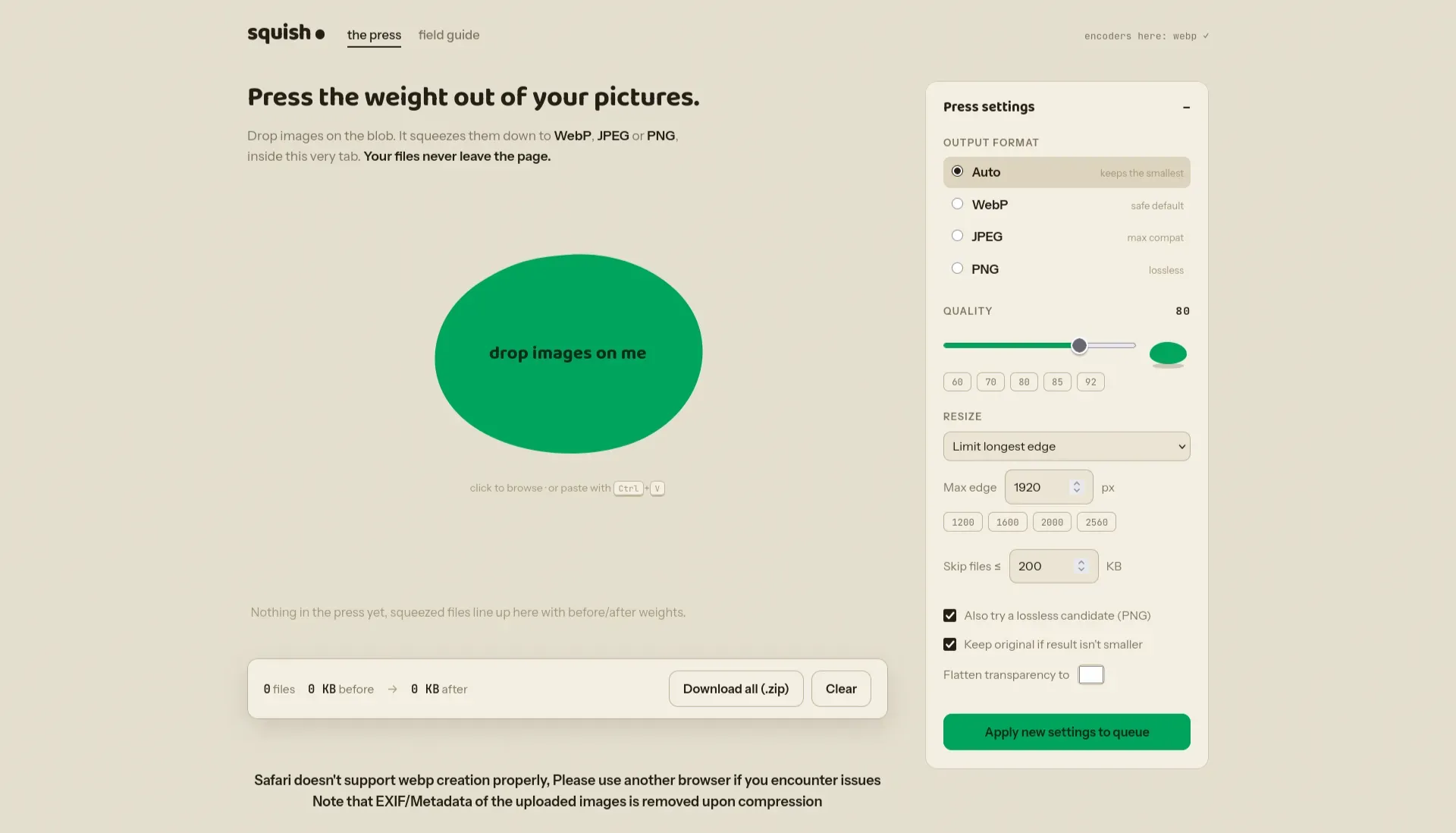
So began my journey, into making a simple side project: Squish and learning first hand how browsers handled it and the underlying math behind it. The code for it is opensource and freely accessible to everyone, so feel free to check the code.
Note: The explaination's provided below are deeply technical and maths will be involved. If you would like simpler explainations, the squish project also has a guide page that explains all these in a much more user friendly way. You can find the guide page HERE.
What an image actually is
Raster vs vector
Everything my app touches (JPEG/PNG/WebP/GIF) is a raster image: a grid of colored squares called pixels. The other side of the coin is the SVG format, its a vector. It's math (paths, curves, fills) that gets rasterized into pixels at whatever size you need. That's why apps can't really compress SVGs, they're text, not pixels.
### Pixels, channels, bit depth
Each pixel is stored as numbers, one per **channel**:
RGB: red, green, blue, each a value between 0–255 (8 bit channel, the standard of the web).
RGBA adds a 4th number: alpha (0 = invisible, 255 = fully opaque). This is what makes transparency possible.
So one pixel = 3 bytes (RGB) or 4 bytes (RGBA). For context, those 3 bytes could contain 256 × 256 × 256 = 16.7 million possible colors.
The raw-size math you must understand
An uncompressed image is just those bytes laid end to end:
width × height × channels = raw bytes
4000 × 3000 photo (12 MP) × 4 bytes = 48,000,000 bytes ≈ 48 MB
A 12 MP photo is 48 MB of raw pixels. A 3 MB JPEG of that photo is a ~16× compression. When you drag in 20 photos, your browser is potentially holding ~1 GB of decoded pixel data.
- 1080p screenshot:
2.1megapixels.8 MBraw, typically400 KBas JPEG or250 KBas WebP.
- 12 MP phone photo:
12megapixels.48 MB raw, typically3 MBas JPEG or2 MBas WebP.
- 4K wallpaper:
8.3megapixels.33 MBraw, typically2 MBas JPEG or1.4 MBas WebP.
Two more things living inside image files
Metadata (EXIF): The data about the image that cameras embed at the time of capture. This includes but not limited to orientation, GPS coordinates, camera model.
2. Color profile: browsers assume sRGB. You don't need more than knowing it exists.
How compression works (the theory)
Storing 48 MB of raw pixels is wasteful because pixels are redundant. The pixel next to a blue sky pixel is almost the same blue. Compression is just exploiting redundancy. There are two families:
Lossless compression
The main philosophy: "store the pattern, not the data"
Three ideas work alongside each other:
Prediction: If the pixel to the left was 200, this pixel is probably ~200. So storeactual − predicted(the residual). Residuals are mostly tiny numbers near zero → easier to compress. This is at the heart of PNG.
2.Dictionary coding (LZ77) If a sequence of bytes already appeared earlier, replace it with a back-reference: "copy the 40 bytes from 300 bytes back." This totally finishes repeated patterns.
3. Entropy coding (Huffman) Frequent symbols get short codes, rare ones get long codes, like Morse giving E one dot. If the value 0 appears 90% of the time, give it a 1-bit code. really good video on this by tom scott.
Because this is lossless, the decompressed output is bit-for-bit identical. No quality loss, ever. The ceiling is set by how duplicated the data is.
Lossy compression
This works on the principle: "delete what humans can't notice"
It trades exactness for size by exploiting our perception of the image:
Human eyes are magnificent. The ability to see is highly underrated in my opinion. The inner workings are even more marvelous. Not an ophthalmology class so lets keep it basic. Our eyes are great at brightness detail, but bad at color detail. Since there are more rods than cones, we can store color at lower resolution than brightness.
We're bad at seeing tiny high-frequency texture inside busy areas. So, throw those frequencies away first.
We notice edges a lot. So, protect the edges and sacrifice the smooth gradients' exactness.
Lossy is irreversible. Once encoded, the deleted information is gone forever. Re-encoding a lossy file again (also called a "generation loss") degrades it further even at the same quality.
Compression = prediction + storing only the surprise + entropy coding.
Lossy adds one step first: delete the surprise nobody can perceive.
PNG predicts in pixel space. JPEG predicts in frequency space. WebP predicts better. Everything below is variations on this sentence.
The formats
JPEG
First, RGB channels are converted to YCbCr. Convert to one luminance channel (Y, brightness) and two chroma channels (Cb, Cr, color). Same principle as before. More susceptible to brightness changes than to color changes, so seperate them so heavier compression can be applied to the colors while keeping the image about the same.
Second is the chroma subsampling (4:2:0). Keep every luminance sample, but only 1/4th of the color samples. This is instant 2× saving and nobody notices.
Fun fact: This is why picking a color with an eyedropper from a JPEG can give a slightly "off" value.
Third, Split into 8×8 blocks.
Fourth, we perform the DCT (Discrete Cosine Transform) on each block converting it into frequency coefficients. It looks at the 8×8 pixels and figures out how much of each type of pattern is present, from large, smooth changes to tiny details. The first value represents the block's average brightness, while the others represent increasingly finer details. At this stage, no information is lost. We're simply rearranging the same information into a form that's easier to compress.
Next up is Quantization, the step where JPEG actually loses information. Each DCT coefficient is divided by a number from a quantization table and then rounded to the nearest whole number. Fine details use larger numbers, so many of them after division get rounded to 0 and are discarded.
Then, the long runs. The zeros now come in long runs for example 17 zeros in a row, which compress brilliantly.
Some fun facts:
Why JPEG ruins text/logos: sharp edges are pure high-frequency content which is exactly what quantization deletes. You get "mosquito noise" ringing around edges.
Why JPEG has no transparency: the format simply has no alpha channel.
PNG
its lossless, and photos hate it.
First, it filters: For each row, the encoder tries 5 predictors, none, left pixel, pixel above, average, and Paeth (picks whichever of left/above/diagonal is closest in value). It stores the residual and picks whichever filter produced the most predictable row.
Then, just DEFLATE = LZ77 (back-references) + Huffman. Same family as ZIP and gzip.
Consequences:
Screenshots/UI crush it: flat colors → residuals are almost all 0 causing tiny files.
Photos balloon: photo noise means every pixel differs slightly from its neighbor. Prediction fails, residuals look random, nothing repeats.
It does have full alpha support, 8-bit (or 16-bit) per channel, always bit-exact.
Why PNG images are the most common transparent images.
WebP
It's basically JPEG, but 2026.
Lossy WebP is built on the VP8 video codec. Instead of JPEG's one dumb prediction (block average), VP8 predicts each block from its neighbors in many directions, then only encodes the leftover. Better prediction means smaller residual leading to fewer bytes. Adding arithmetic coding (a smarter entropy coder than Huffman) means they are ~25–35% smaller than JPEG at equal quality, and it supports alpha in lossy mode (JPEG never can).
Lossless WebP uses its own bag of tricks like LZ77 + color caching + transforms (Exercises for you my dear readers to read and find about on your own). Thus, it beats PNG by ~25% typically.
GIF
LZW compression (older, weaker than DEFLATE).
256-color palette total: Every frame shares or re-picks a palette.
1-bit transparency only: a pixel is fully transparent or fully opaque. No soft edges.
Animation = literally storing many frames.
The Result is a 5-second clip can be 15 MB where a WebM video is 500 KB.
SVG
Text/XML describing shapes.
Pros: infinite scaling, tiny for icons, stylable with CSS, animatable.
Cons: terrible for photos (you'd describe millions of pixels individually)
the biggest issue being security. An untrusted SVG can contain <script>, thus never inline user-uploaded SVG into your DOM. instead draw it via <img>, if you have to. Its safe since scripts don't run inside <img>.
These were just some of my findings during this hunt. Hope you learned something new and enjoyed it. Take care, byeeeeeeeee